Board
The heart of 4ga Boards is, unsuprisingly, a board. Board view is the main view of this app - you will spend here most of your time. Don't worry! It's easy to grasp.
At first you will see that your project contains no boards - to create them, simply click the +Add Board button that is located at the bottom of the sidebar or at the top-right corner of the screen.

If you are joining to an existing project, here is how it should look like:
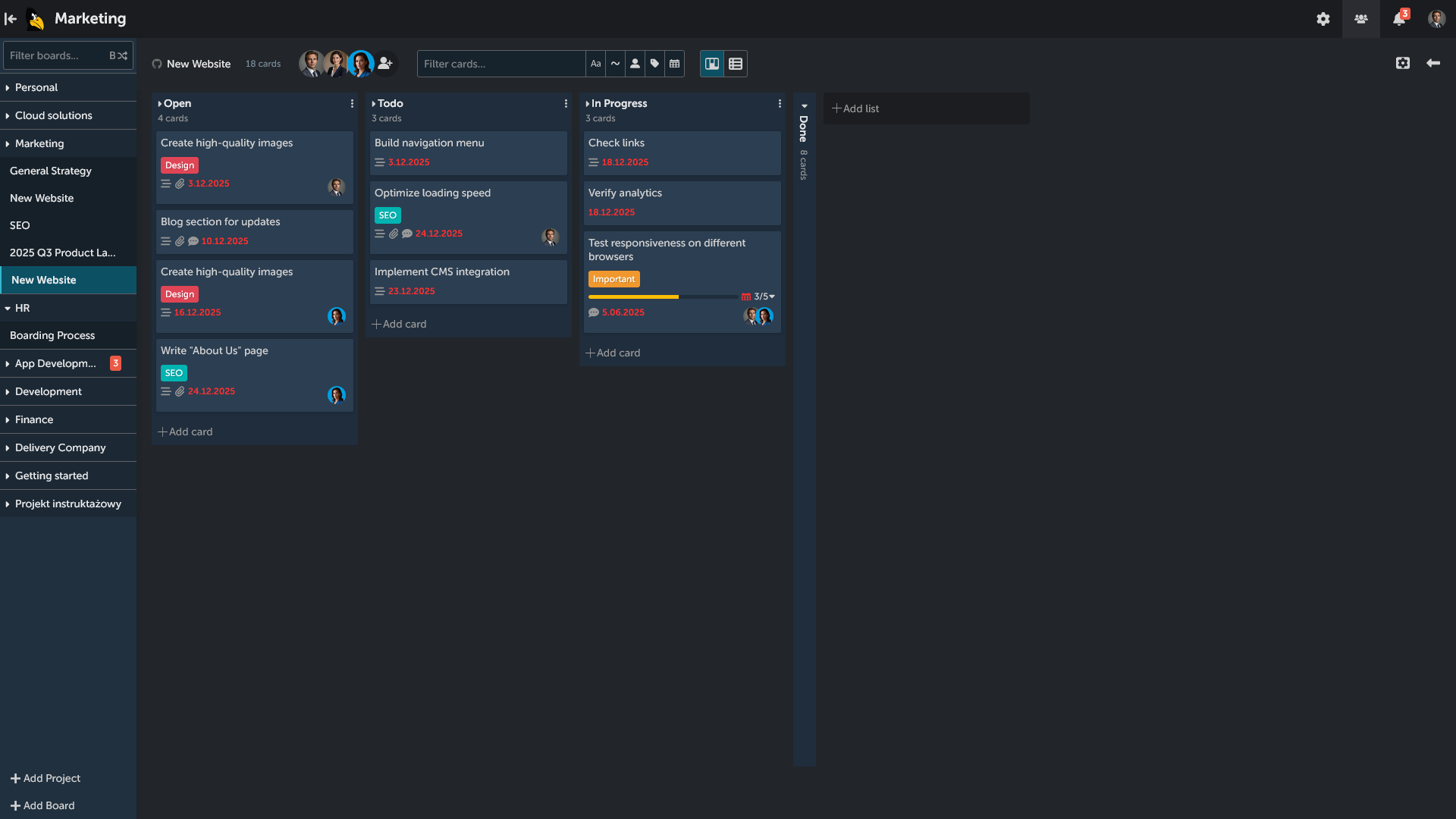
If you have set the default view as list view, here is what you will see:
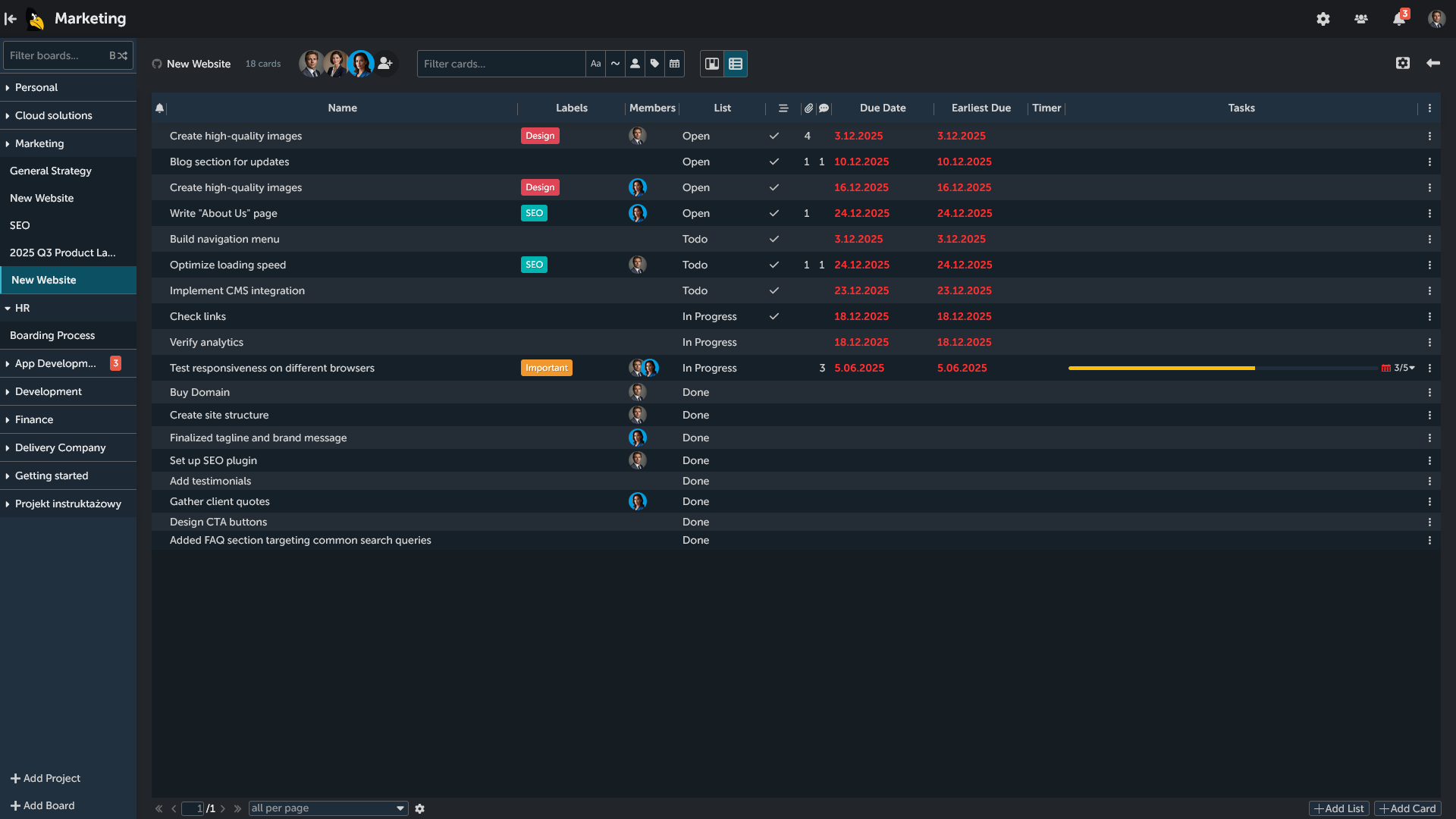
Notice that selected board is highlighted in the sidebar view (in this case, it is "New Website" from "Marketing" project).
Creating a new board
There can be more than one board per project - simply click the +Add Board button that is located at the top-right corner of the screen to create new one inside the currently opened project. Alternatively you can add board using three-dot sidebar menu of a project (it will create the board inside the selected project). The last option is to click the +Add Board button at the bottom of the sidebar. This will enable additional setting - choosing the project in which the board will be created from the dropdown list.

This will open up a pop-up window in which you can name your board, prefill the lists in the board with templates or import your data from 4ga Boards (in .csv file format) or from Trello (supporting .json file format).

Currently there are two available templates, simple:

And kanban:

Board additional options
If you want to edit or delete your board, open the ellipsis menu in the sidebar (they will show after you hover over the board name). You can also change the order of the board within the project after clicking and holding the two arrows button that will appear on the left of the board name. If you wish, you can also export your board in .csv format here.
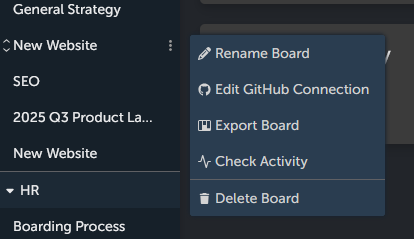
Board toolbar
Each board comes with separate toolbar, in which (going from left to right) you can:
- Set up GitHub integration (click GitHub icon),
- See the number of cards after filtering,
- Add members to the board
+Add membericon, delete or edit permissions of members (click on the appriopriate member icon to change it), - Filter cards (more below the image),
- Change view (Board view/List view)

Board Filtering
Board filtering is a powerful tool that let's you quickly find what you are looking for. For even quicker navigation, you can select appriopriate option (explained below) by clicking or using key combination when you are clicked in the Filter cards type box.
You can filter board using different techniques:
Aa: Match Case (Alt+C): will filter based on letter case (Example: typing "create" will not return cards with the title "Create")~: Any Match (Alt+V): "inclusive search"; Enable this option to show cards that match any of your selected filters.
(Example: If you select multiple members, the search will return every card that has at least one of the selected members assigned. IfAny Matchis off, only cards that have all selected members assigned will appear.)- Filter by members: Select/Remove members you want to filter.
- Filter by labels: Select/Remove labels you want to filter.
- Filter by due date: Select the due date to filter: search will return all the cards that are before selected due date; if
Show Cards Just For Selected Dayoption is enabled, it will show cards with only the exact due date. This search returns also the cards with appriopriate subtask due date.
Board permissions
Each member of the board can have different permission:
- Project manager: manage boards and add members,
- Editor: can create and delete tasks and lists,
- Commenter: can view contents of the board and comment on the cards,
- Viewer: can only view contents of the board.