Notifications
4ga Boards features a comprehensive notifications sytem, consisting of two main modules: Notification Center and Check Activity Log
Notifications and Notification Center
You can quickly view notifications by clicking the bell icon in the top-right corner. This will open a panel on the side. To close it, click anywhere on the board.
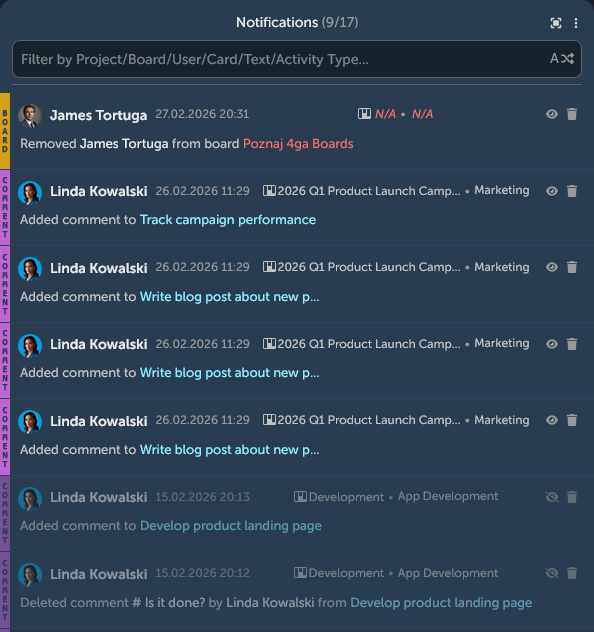
Each notification is structured as follows:
- Notification category (see details below)
- User and time of trigerring notification
- Detailed description of notification (what action occurred on which element, e.g. adding a user to a task)
- Board and Project associated with the notification (if applicable)
eyeicon - notification is unread/crossed eyeicon and dimmed notification - notification is read; click the icon to manually change the statusbinicon - delete notification.

There are several notification categories marked with a distinctive label on the left:
- Project (e.g. creation, name changes, adding/removing users, background changes)
- Board (e.g. creation, name changes, adding/removing users)
- List (e.g. creation, removal, position changes on the board, expanding/collapsing)
- Card (e.g. adding tasks, members, labels, comments, changing the description)
- Task (e.g. creation, marking as complete, adding members, setting a due date)
- Comment (adding, updating, deleting)
At the top of the panel, you will find a filter box that helps you quickly scan notifications.
Use the double arrow icon to change the filter type:
- All – shows all results
- Project – notifications for a specific project
- Board – notifications for a specific board
- User – notifications related to a user
- Card – notifications related to a card
- Text/type of activity – searches notification text fields (e.g. comment text) or activity type (e.g. typing "taskcreate" will result in showing all task creation notifications)

Open ellipsis icon to mark all notifications as read/unread, delete all notifications, delete only read notifications. Click on the icon to the left from the ellipsis to open fullscreen Notification Center, where you can thoroughly examine all notifications.
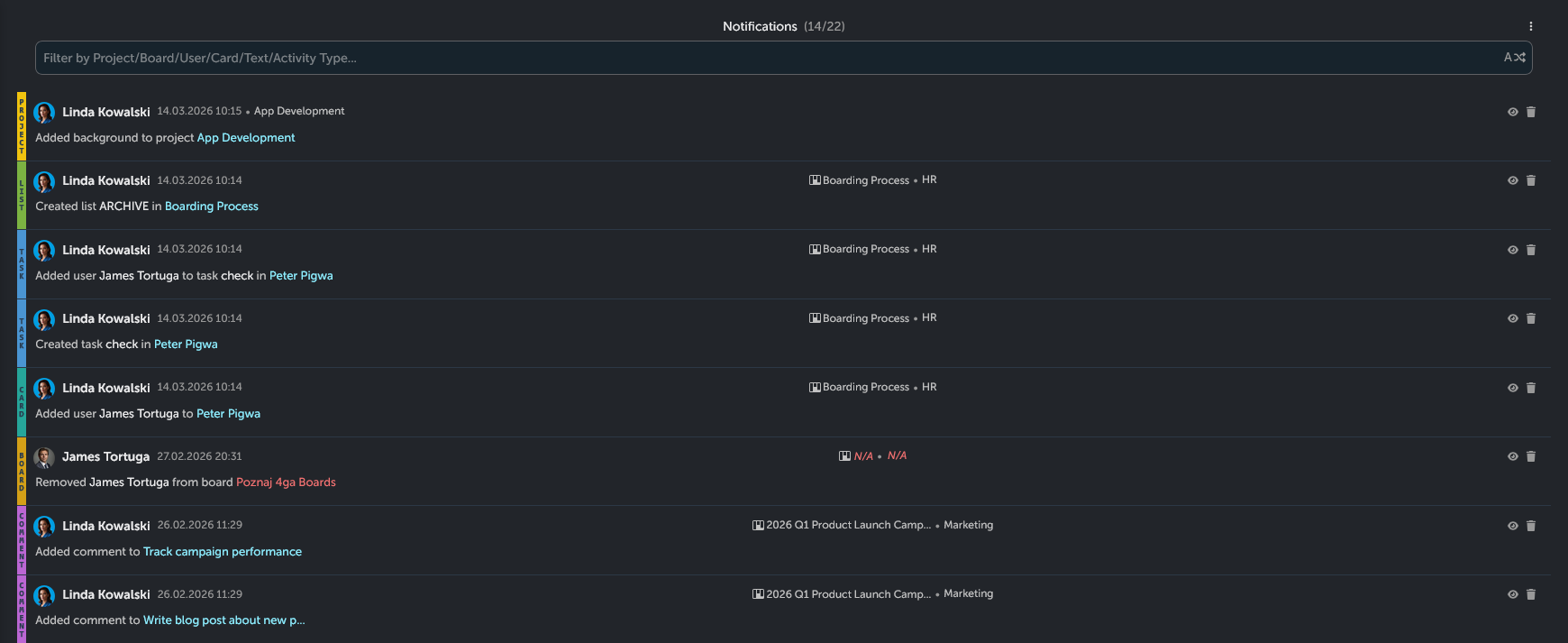
Activity Check Log
In several elements, clicking the ellipsis icon gives you the option to check activity. This opens the Activity Log popup window.
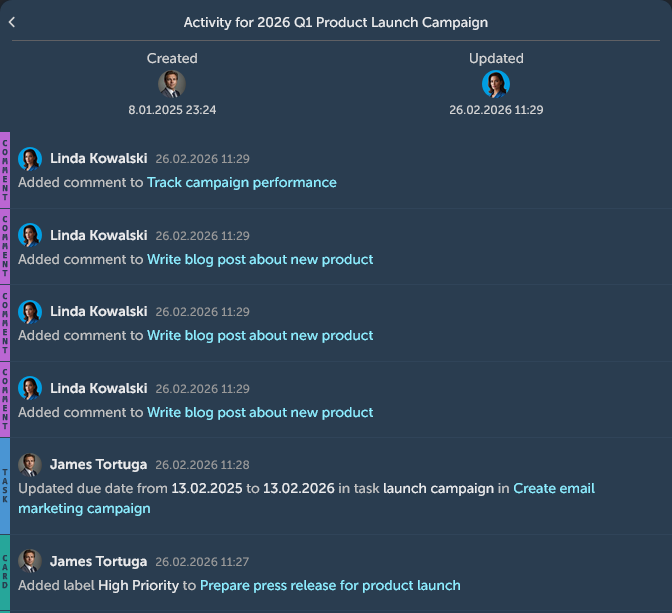
The window displays the creation and last update time of the element, along with all activity performed on it. For elements with high activity (e.g. boards), you can scroll through the activity list, down to the very first entry.