Widok listy
Widok listy to specjalny widok w 4ga Boards, który pozwala zobaczyć wszystkie zadania w wygodnej formie listy to-do. Oba widoki można swobodnie zmieniać: wszystkie zmiany pozostają zsynchronizowane, niezależnie od tego, czy wprowadzisz je w widoku tablicy, czy w widoku listy.
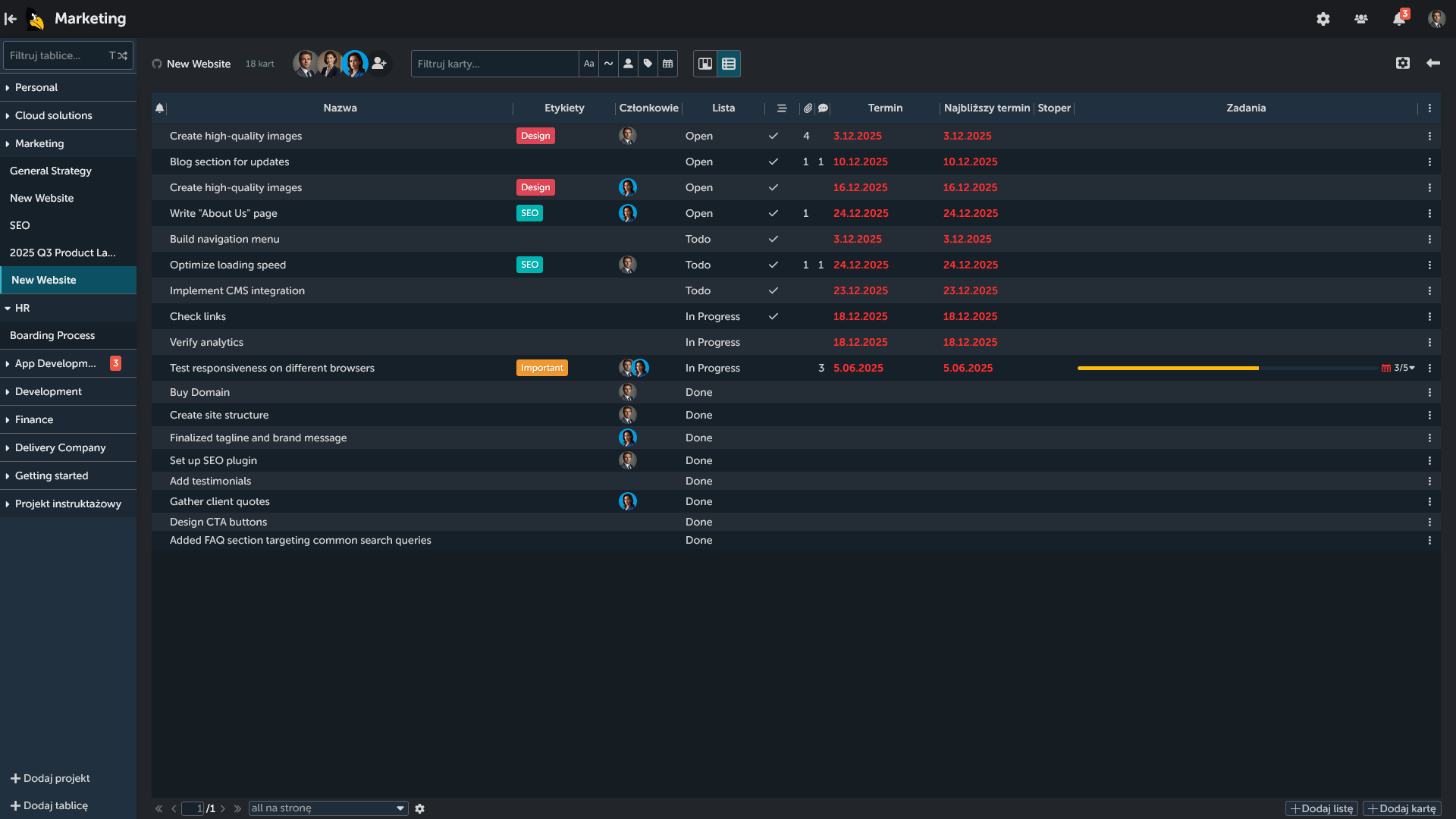
Nawigacja w widoku listy
Możesz ręcznie dostosować szerokość kolumn, przeciągając separatory |.
Każdy wiersz reprezentuje osobną kartę i zawiera te same funkcje co zwykła karta w widoku tablicy, wyświetlone w kolumnach. Od lewej do prawej:
- Ikona
Dzwonkado powiadomień - Nazwa karty
- Etykiety przypisane do karty
- Członkowie przypisani do karty
- Lista w widoku tablicy, do której należy karta
Znacznikinformujący, czy karta zawiera opis- Liczba załączników
- Liczba komentarzy
- Termin wykonania
- Najwcześniejszy termin wykonania
- Timer
- Zadania przypisane do karty
- Menu
wielokropkakarty
Aby uzyskać dodatkowe informacje, przejdź do opisu karty.
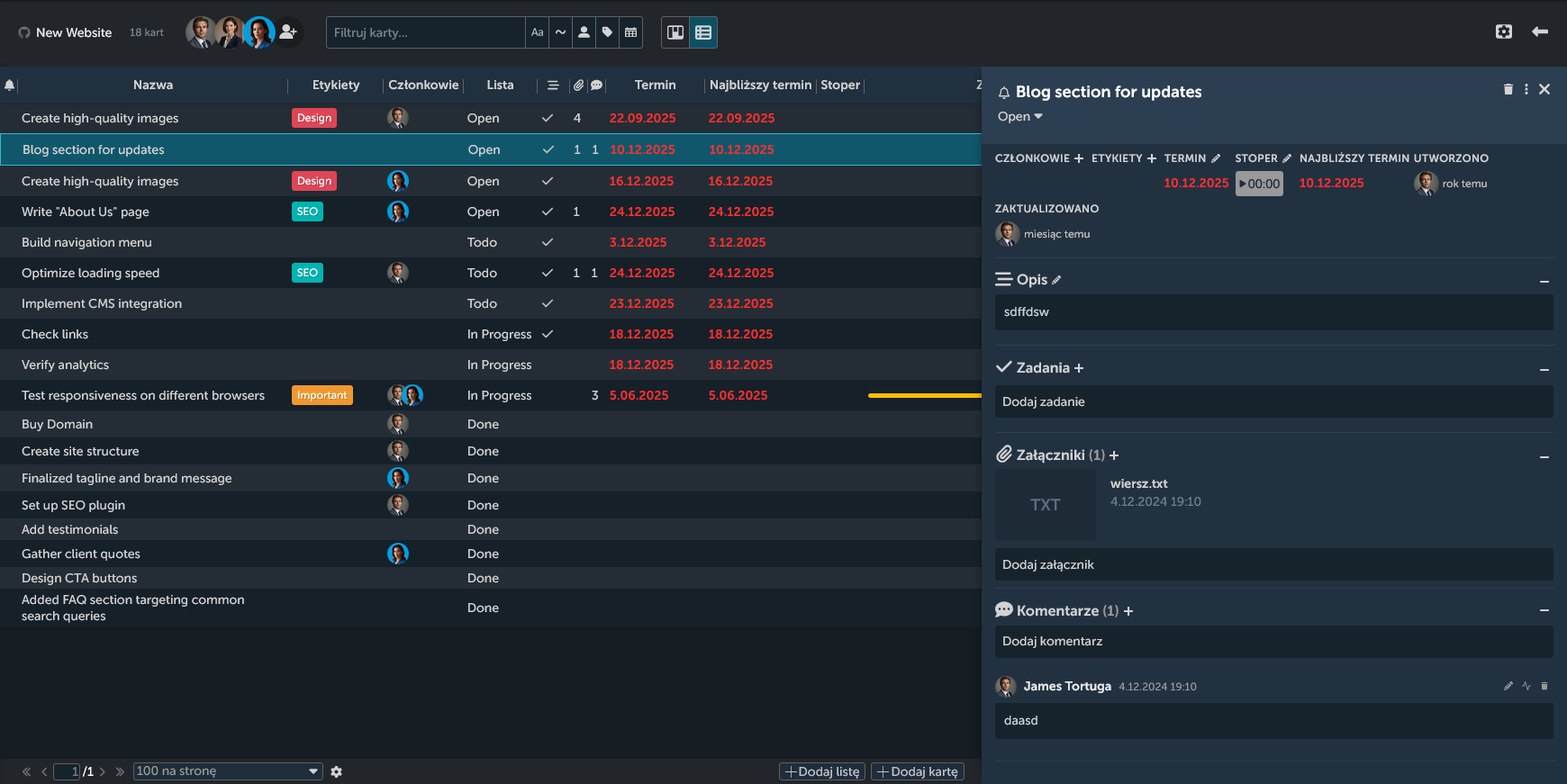
Możesz wchodzić w interakcję z każdym z tych elementów bezpośrednio z poziomu widoku listy lub otwierając odpowiednią kartę. Aby to zrobić, kliknij w puste miejsce w wierszu karty (dla wygodniejszej nawigacji zalecamy kliknięcie w pole opisu/załącznika/komentarza — nie otworzą one wyskakującego okna).
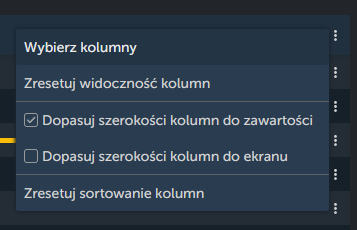
To jest domyślny zestaw kolumn. Aby dodać lub usunąć kolumny, użyj menu wielokropka w prawym górnym rogu listy. Możesz również ustawić kolumny tak, aby dopasowywały się do treści lub do szerokości ekranu, a także łatwo przywrócić domyślne sortowanie i domyślny zestaw kolumn.
Na dole listy znajduje się dodatkowy panel nawigacyjny, w którym możesz wybrać liczbę kart widocznych na stronę (domyślnie: 100), zmieniać strony za pomocą strzałek po lewej stronie oraz uzyskać dostęp do menu listy poprzez ikonę koła zębatego.
Po prawej stronie możesz dodać Listę oraz Kartę — pojawią się one również w widoku tablicy.

List view features
W porównaniu do klasycznego widoku tablicy dostępnych jest kilka dodatkowych opcji, które pomagają lepiej wizualizować przepływ pracy:
Sortowanie: możesz sortować listę jak zwykłą tabelę, zarówno rosnąco, jak i malejąco, co oznaczone jest ikoną strzałki.
Możesz także zastosować sortowanie wielopoziomowe — wybrać kilka kolumn do sortowania, gdzie liczby koło strzałek pokazują priorytet sortowania. W poniższym przykładzie kolejność sortowania jest następująca: najpierw etykiety rosnąco, następnie nazwa malejąco.
